
Quick start
You need a phone, your Wi-Fi password and an email address.
- Plug it in
Connect the USB-C cable and turn on the switch on the back.
- Scan the code
Scan the QR code on the screen to join the Powder Oracle's setup network.
- Enter Wi-Fi and email
Fill in the page that opens, then tap Connect.
- Open the email
Confirm your device. Your first snow report appears in seconds.
Then swipe: left and right to change screen, up and down to change resort. The full walkthrough is under Set it up.
Meet the device
The Powder Oracle tells you, from across the room, whether it snowed at your mountain.
A glass orb on top glows with the size of the latest snowfall. A small touchscreen on the front shows the full report: new snow, the week's total, base depth, the hourly forecast, avalanche danger and a short written forecast called the Oracle Brief.
It works on its own once it is on your Wi-Fi, and there is no subscription: every feature is included. You choose your resorts and settings in the Powder Oracle app, and the device picks them up by itself.
The parts
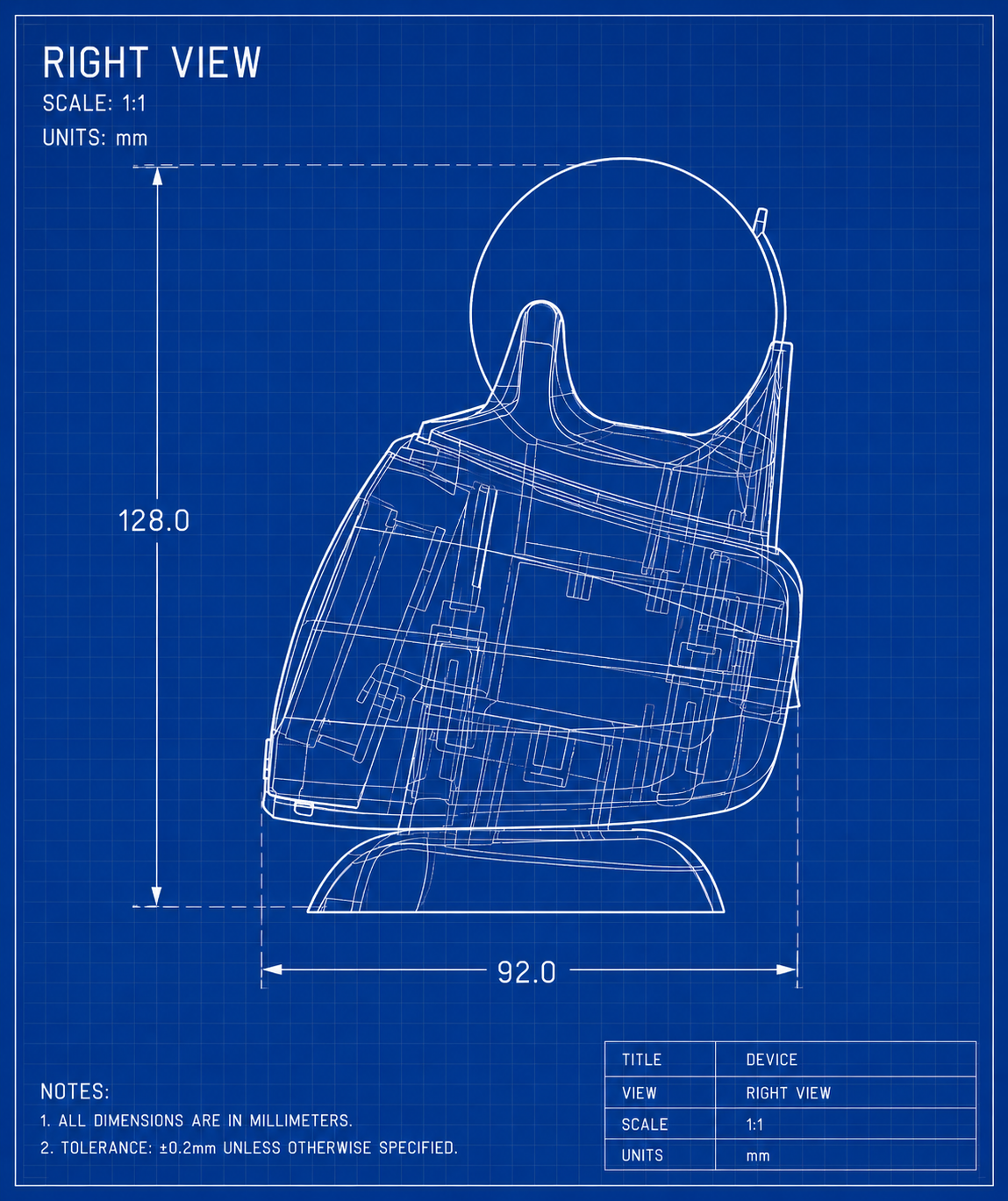
- 1Glass orb. Sits in the cradle on top, lit from below by a ring of 7 colour lights. Shows the latest snowfall at a glance.
- 2Touchscreen. A 2.8 inch colour display on the front. Swipe to move between screens and resorts.
- 3Speaker. Inside the body. Plays the startup chime, the Powder Alarm and the spoken Oracle Brief.
- 4USB-C port and power switch. Both on the back. The port is for power only.
There are no other buttons. Everything on the device is done by touch.
In the box
- Powder Oracle
- USB-C cable
- Quick start card
A USB power adapter is not included. Use any 5 V USB adapter rated at least 2 A.
Set it up
The Powder Oracle joins your Wi-Fi first, then emails you a link to finish setting up your account.
Your Wi-Fi must be a 2.4 GHz network. Most home routers offer one alongside 5 GHz. The Powder Oracle cannot connect to 5 GHz-only networks.
- Power it on
Plug the USB-C cable into the back of the Powder Oracle and into a USB power adapter, then turn on the switch on the back. You hear a chime and see the Powder Oracle logo.
- Calibrate the touchscreen, if asked
The first time it starts, the screen may show three targets one after another. Tap and release each one as accurately as you can. You only do this once.
- Join its setup network
The screen shows Set up your Powder Oracle with a QR code, a Wi-Fi name like PowderOracle-1A2B and a password. Scan the QR code with your phone's camera to join automatically, or open your phone's Wi-Fi settings, choose the PowderOracle network and type the password shown.
- Fill in the setup page
A page titled Connect your device usually opens by itself. If it does not, open a browser and go to 192.168.4.1. Choose your home Wi-Fi, enter its password and your email address, then tap Connect.
- Wait for it to connect
The page says Almost there! and the Powder Oracle restarts. If the screen says Connection failed. Retrying..., check the Wi-Fi password and that the network is 2.4 GHz.
- Open the email
The screen now says Check Your Email. Look for an email titled Finish setting up your Powder Oracle and open its link within 24 hours. Check your spam folder if it has not arrived.
- Create your account or sign in
The link opens the Powder Oracle app. Create an account, or sign in if you already have one, then give your device a name and pick your first resort.
- Done
Within a few seconds the Powder Oracle leaves the setup screen and shows its first snow report.
If the setup network is no longer offered by the time you get to it, switch the device off and on to start again.
Finding your way around
Five screens sit in a loop, and every screen works for every resort you follow.
| Gesture | What it does |
|---|---|
| Swipe right | Next screen. After PowderDrive it wraps back to Snow. |
| Swipe left | Previous screen. From Snow it wraps to PowderDrive. |
| Swipe up or down | Up for the next resort, down for the previous one. Works on every screen. |
| Touch and hold | Opens the quick menu. |
| Tap | Wakes the screen from the screensaver, and turns the page on long text. |
The top bar
A thin bar across the top of every screen shows the resort name, five dots for which screen you are on, and your Wi-Fi signal strength. A small dot on the left is green when the report is fresh and amber while it is loading or out of date.
The five screens
The pictures show each screen for Revelstoke on a storm morning, exactly as the device draws them. The Powder Oracle has two looks, Standard and Retro (16-bit). They show the same screens and work the same way; you choose one in the app.
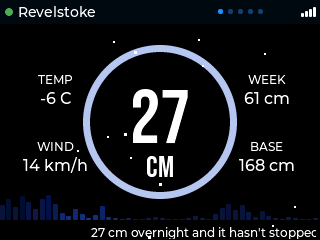
Snow
The home screen, and the one you will look at most.
- 1New snow. The big number in the ring. The ring takes the same colour as the orb.
- 2TEMP. Current temperature at the resort.
- 3WIND. Current wind speed.
- 4WEEK. Total new snow over the last 7 days.
- 5BASE. Snow depth at the base.
- 6Forecast bars. Snowfall hour by hour for the next 24 hours. Taller bars mean heavier snow.
- 7Headline. The first line of today's Oracle Brief, scrolling past.
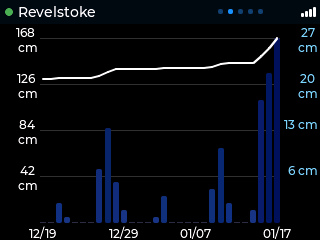
History
The last 30 days. Each blue bar is one day's new snow, read against the blue scale on the right. The white line is the base depth, read against the white scale on the left. Dates run along the bottom.
A day with no report is left blank, not shown as zero.
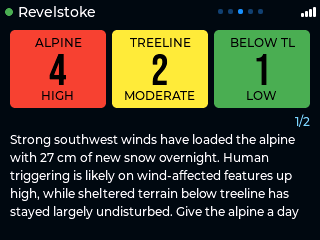
Avalanche
Today's avalanche bulletin for the area around the resort. Each card is one elevation band: ALPINE, TREELINE and BELOW TL (below treeline). Each shows the danger as a number, a word and a colour.
| Rating | Colour on the card |
|---|---|
| 1 Low | Green |
| 2 Moderate | Yellow |
| 3 Considerable | Orange |
| 4 High | Red |
| 5 Extreme | Black with a red outline |
| No rating | Dark slate. No bulletin has been issued, which is normal out of season. |
- Issued 9 h ago. How old the bulletin is. It turns amber once the bulletin is more than a day old.
- Summary. The bulletin in a few sentences. A long one is split into pages, marked 1/2; the page turns every 8 seconds, or tap to turn it.
While this screen is showing, the orb switches from snow colours to the overall danger, from green to red.
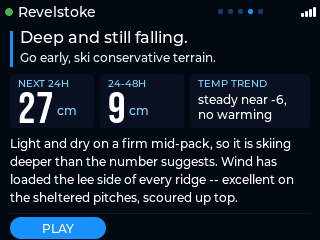
Oracle Brief
The Oracle's written forecast for the resort.
- Verdict. The Oracle's call in one line, with what to do about it underneath.
- NEXT 24H and 24-48H. Forecast snowfall for tomorrow and the day after.
- TEMP TREND. Whether it is warming or cooling.
- Details. A few sentences on how the snow will ski. Long text is split into pages that turn every 8 seconds, or tap to turn them.
- PLAY. Reads the brief aloud. Tap CANCEL while it loads or STOP while it plays.
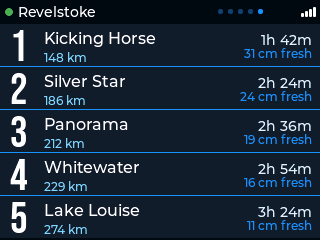
PowderDrive
The five best resorts within driving distance of your home, ranked. Each row shows the distance, the drive time and the fresh snow.
Set your home location, the longest drive you will make and the least snow worth driving for under PowderDrive in the app. The list loads each time you open the screen.
The orb light
The orb shows the new snow at the resort on screen. The deeper the day, the hotter the colour.
| Orb | Meaning |
|---|---|
| Off | No new snow. |
| Light blue to deep blue | 1 to 5 cm. A dusting. |
| Purple | Around 10 cm. Worth a look. |
| Dark red to bright red | 15 to 20 cm. Building into a powder day. |
| Red with pink sparkles | More than 20 cm. The deeper it is, the busier the sparkle. |
| Slow pulse | A new figure just arrived. A faster pulse means a bigger jump. |
The orb changes as you swipe between resorts. On the Avalanche screen it shows the overall avalanche danger for that resort instead:
The orb is colour only. The exact figure is always on the Snow screen. The orb dims overnight if Night dim is on, and you can turn it off in the app.
Powder Alarm
A morning alarm that only rings when it snowed.
At your wake time, on the days you chose, it rings if your primary resort's new snow is at or above your minimum. Set the minimum to 0 cm and it rings on schedule whatever the snow. You set all of this in the app.
When it rings, the screen shows POWDER ALARM with the resort and the amount. Tap ACKNOWLEDGE to stop it. If you do not, the message closes after 60 seconds. It rings at most once a day.
You can also have the Powder Oracle read that resort's Oracle Brief aloud once you stop the alarm. It is off unless you turn on Play Oracle brief after alarm under Sound in the app.
The app tells you. Open your device and look at Readiness: it says whether the alarm would ring on the current report, and why not if it would not.
Quick menu and screensaver
The quick menu
Touch and hold anywhere to open a round menu with two choices:
- Wi-Fi (left) asks Reconfigure WiFi? Tap Yes to restart in setup mode and join a different network.
- Status (right) shows Wi-Fi strength, whether the snow data is current, the resort and the firmware version.
Tap the gear in the centre, or outside the circle, to close it. Every other setting is in the app.
Screensaver
After the screen has been idle for the time you choose, a screensaver takes over. Tap to wake.

Storm Pulse
Draws the next 24 hours of forecast snow as a moving comet trail.
Retro ANSI
A text-mode scene that follows the snow: a clear night, a light fall or a storm. Switch the pictures to Retro above to see it.
The Powder Oracle app
Every setting lives in the Powder Oracle app, a web app you open in your phone or computer browser.
Go to www.powderoracle.com/app, or follow the link in your setup email. You can add it to your home screen like any other app.
See it before you own one. The demo is the real app running on sample data. Change anything you like; nothing is saved.
Try the companion app →The dashboard
- Your primary resort leads, with its new snow and the forecast for the next 48 hours. Your other resorts follow underneath. Tap any of them for the full report.
- My Devices lists your Powder Oracles with live status.
- Add another device explains how to set up a second Powder Oracle.
Your device's page
The top of the page reports on the device itself: whether it is online, when the alarm is set for and whether it would ring, whether your settings have reached it, and its Wi-Fi strength. The settings sit below in four groups.
| Group | Card | What you set |
|---|---|---|
| Mountain | Resorts | Your primary resort and your favourites. Out-of-season resorts are labelled but can still be chosen. |
| PowderDrive | Home location (typed or from your phone's location), minimum snowfall, longest drive, and which days to score. | |
| Wake-up | Powder Alarm | On or off, wake time, minimum snowfall (0 to 30 cm) and the days it applies. |
| Sound | Volume, and whether to play the Oracle Brief after the alarm. | |
| Screen | Display | Brightness, Night dim and its hours (18:00 to 06:00 unless you change them), the LED ring under the orb, and metric or imperial units. |
| Style | Standard or Retro (16-bit), the screensaver style, and how long before it starts (1 to 30 minutes). | |
| Device | Name and timezone | What the device is called and the time zone its alarm and Night dim follow. |
| Diagnostics | Device ID, Wi-Fi strength, IP address, uptime, firmware and last check-in. Factory reset is here too. |
When a change takes effect
Tap Save changes and the app stores your settings straight away. The device picks them up the next time it checks in. The Settings line at the top of the page tells you where things stand:
- Waiting for device. Saved to your account, not yet on the device.
- Applied on device. The device has confirmed it is using them.
- Device rejected this change. The device could not apply it; the app shows the reason.
Changing the interface style restarts the device.
Your account
Tap your initials on the dashboard to change your password or sign out. If you forget your password, request a reset from the sign-in page; the reset link works once and expires after 1 hour.
Updates and recovery
Software updates
The Powder Oracle updates itself. It checks for new software about every 30 minutes, and required updates install without you doing anything. While one installs the screen shows its progress: keep the device plugged in until it restarts. If a new version fails to start properly, the Powder Oracle goes back to the previous version on its own.
Recovery mode
If the Powder Oracle restarts unexpectedly three times in a row, it starts in Recovery Mode instead of the normal screens. In this mode it stays on Wi-Fi and installs a fix by itself as soon as one is available.
- Keep it plugged in and connected.
- To try a normal start, press and hold the screen for 5 seconds.
Troubleshooting
The PowderOracle Wi-Fi network does not appear
Make sure the screen says Set up your Powder Oracle. If it has been sitting for a while, switch the device off and on to offer the network again.
The setup page does not open
Stay on the PowderOracle network and go to 192.168.4.1 in your browser. Some phones ask whether to stay connected to a network without internet: choose to stay.
The screen says "Connection failed. Retrying..."
Check the Wi-Fi password. Make sure the network is 2.4 GHz, and move the device closer to the router.
The setup email has not arrived
Check your spam folder. The link lasts 24 hours. If it has expired or never arrived, email info@snowscraper.ca and we will sort it out.
The dot in the top bar stays amber, or Status shows Offline
Check that your Wi-Fi is working. The device keeps showing the last report it received and reconnects by itself.
I changed my router or Wi-Fi password
Touch and hold the screen, tap Wi-Fi, then tap Yes. Then follow steps 3 to 5 of Set it up.
The orb is dark but the screen shows a report
The orb is off when new snow is zero. If there is new snow, check that LED ring is on under Display in the app.
The Powder Alarm did not ring
Open your device in the app and read the Readiness line, then open the Powder Alarm card for the detail. Check the time zone, the days and the minimum snowfall. The alarm only rings on a current report, and only once the device's clock has synchronized.
My settings say "Waiting for device"
They are saved and will apply the next time the device checks in. If it stays that way, make sure the device is switched on and online.
The avalanche cards say NO RATING
No bulletin has been issued for that area, which is normal out of season.
The avalanche "Issued" line is amber
The latest bulletin is more than a day old. The avalanche centre may not have issued a new one yet; check its website before heading out.
Touch is inaccurate
Do a factory reset. The touchscreen is calibrated again when it restarts.
The screen is black
Check the cable, the adapter and the power switch. Unplug for 10 seconds and plug it back in. An adapter rated below 2 A can also cause this.
Nothing matches. Email info@snowscraper.ca and we will help.
Factory reset
A factory reset erases your Wi-Fi details, settings, touch calibration and the link to your account. Afterwards you set the device up again from step 1.
There are two ways to do it:
- From the app. Open the device, open Diagnostics, and under Danger zone choose Factory reset device, then confirm. It takes effect the next time the device checks in.
- On the device. Switch the Powder Oracle off and on. As soon as the logo appears, press and hold the screen. Keep holding for 5 seconds until it says Release to erase all, then let go. Letting go earlier cancels the reset.
Care and safety
- For indoor use only. Keep it dry and away from heaters and direct sun.
- The orb is glass. Lift the Powder Oracle by its body, not by the orb.
- Use a 5 V USB power adapter from a reputable brand, rated at least 2 A.
- Clean the screen with a soft, dry cloth.
Snow and avalanche figures come from resorts, forecast models and avalanche centres, and can be late or wrong. Before entering avalanche terrain, read the official avalanche bulletin and make sure you have appropriate training and safety equipment.
Specifications
| Display | 2.8 inch colour touchscreen, 320 × 240 |
| Light | 7 RGB LEDs under a glass orb |
| Sound | Built-in speaker |
| Wi-Fi | 2.4 GHz, 802.11 b/g/n, WPA2 |
| Power | 5 V through USB-C, about 1 A peak |
| Processor | ESP32-S3, 16 MB flash, 8 MB PSRAM |
Privacy and support
What the device sends
The Powder Oracle sends our servers its device ID, firmware version, Wi-Fi signal strength and the settings it is using, so the app can show its status. It downloads snow reports, forecasts and avalanche bulletins for the resorts you follow. The full privacy policy has the detail.
Getting help
Email info@snowscraper.ca. The Powder Oracle is made by Snow Scraper Technologies.